Manage cookies that are used for advertising, such as ad personalization, remarketing, and ad effectiveness analysis.
8.7.9. Manticore Search users
Important points:
- Authentication is available in Manticore Search 27.0.0 and later (if you are using an earlier version, simply upgrade it using the button in the control panel).
- Authentication is enabled by default on all new instances.
- When authentication is enabled:
- In the security settings, default port blocking is not applied (you can connect to the instance from any IP address or only from specified ones).
- Distributed indexes are not available.
Authentication and user management is performed in the "Manticore Search" section on the "Users" tab: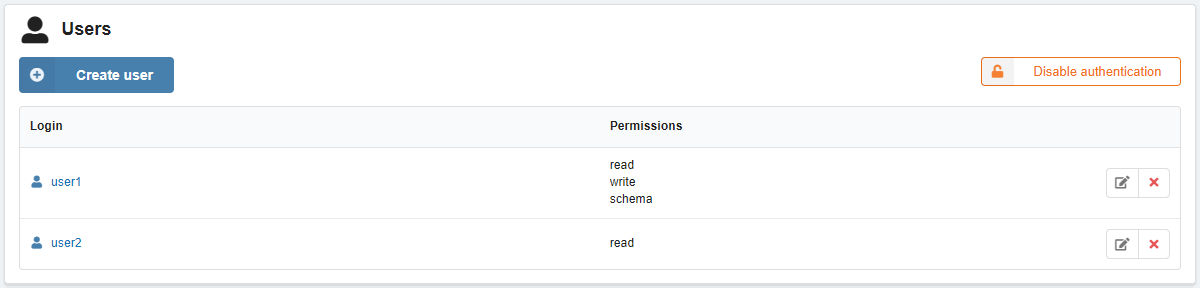
Enable authentication
When authentication is disabled, on the "Users" tab, click the enable button, confirm the operation by clicking the button in the window, and wait for the instance to finish restarting:
Create user
On the "Users" tab, click "Create user", enter a login and password, select privileges, and save your changes: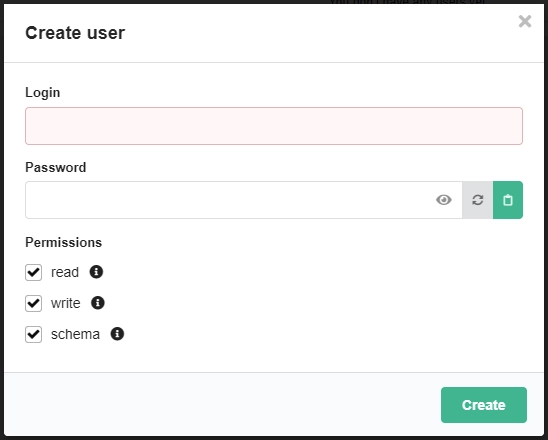
Available privileges:
- read — read data from tables and perform operations on read-only tables.
- write — write and delete data from tables.
- schema — create, modify, delete, import, or otherwise manage table schemas and metadata at the server level.
Change password and configure permissions
On the "Users" tab, click 📝 ("Edit") next to the user's name, enter a new password, select the appropriate permissions, and save your changes.
Connect with authentication
Connecting with authentication from the console via MySQL (use your own data in the command, specify the port without a space after -P, and the login without a space after -u):
MYSQL_PWD=password mysql -hexample.manticore.tools -P10000 -uloginConnecting with authentication and sending an SQL query from the console via cURL:
curl -u login:password https://example.manticore.tools/cli -d "SHOW TABLES"Disable authentication
On the "Users" tab, click "Disable authentication", confirm the operation by clicking the button in the window, and wait for the instance to finish restarting.